
Overview
This tutorial is based on your uploaded FaceEmotionTransferLearning_Final_Code_duringVideo.ipynb notebook. It includes training-data preparation, seven emotion classes, MobileNetV2 transfer learning, model compilation/training, prediction on a face ROI and realtime webcam/video inference code. All notebook code cells and available outputs are included for later editing.
data/tutorials.ts. Change the title, text, images, Python code, YouTube link, and download link there.What you will learn
- Prepare seven-class facial emotion training data
- Resize and normalize image tensors
- Use MobileNetV2 for transfer learning
- Detect face ROI with Haar cascades
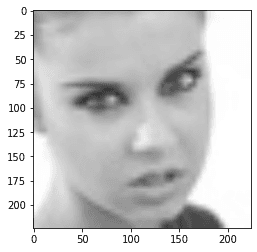
- Predict emotion class on still images and webcam frames
Suggested tutorial flow
Dataset and emotion classes
Load training data from seven emotion-class folders.
Preprocessing
Resize images to 224 x 224 and normalize data.
MobileNetV2 transfer learning
Add new dense layers and softmax classifier.
Face ROI prediction
Detect face, crop ROI and predict emotion.
Realtime video demo
Run prediction on live frames and overlay emotion labels.
Text explanation template
Notebook-based tutorial material
This tutorial is based on your uploaded FaceEmotionTransferLearning_Final_Code_duringVideo.ipynb notebook. It includes training-data preparation, seven emotion classes, MobileNetV2 transfer learning, model compilation/training, prediction on a face ROI and realtime webcam/video inference code. All notebook code cells and available outputs are included for later editing.
How this page is organized
The page shows the full notebook workflow as tutorial sections. Each code cell is rendered as a separate Python code block. If the notebook cell produced an image, graph, screenshot or display output, it is shown under the matching code block and also in the results gallery.
How to edit this later
Open data/tutorials.ts and edit the object with this tutorial slug. Replace resultImages with your final screenshots, update codeBlocks with cleaned code, change videoUrl to the exact YouTube link, and replace the download URL with your final source-code ZIP or GitHub link.
Images, screenshots and results
Add your result screenshots, graphs, model outputs, detected objects, confusion matrices, or interface snapshots here.
Python code explanation
Use one or more code blocks. After each block, explain what the code does in simple teaching language.
Notebook cell 0: import tensorflow as tf ## pip install tensorflow-gpu
import tensorflow as tf  ## pip install tensorflow-gpu
import cv2 ###  pip install opencv-python
 ## pip install opencv-contrib-python   fullpackage
import os
import matplotlib.pyplot as plt  ## pip install matlplotlib
import numpy as np ## pip install numpy ## shift + enter
This code block is extracted from the uploaded Jupyter notebook. Replace or rewrite the explanation later with your final teaching notes for this step.
Notebook cell 1: img_array = cv2.imread("Training/0/Training_314.jpg")
img_array = cv2.imread("Training/0/Training_314.jpg")This code block is extracted from the uploaded Jupyter notebook. Replace or rewrite the explanation later with your final teaching notes for this step.
Notebook cell 2: img_array.shape # rgb
img_array.shape # rgb (48, 48, 3)
This code block is extracted from the uploaded Jupyter notebook. Replace or rewrite the explanation later with your final teaching notes for this step.
Notebook cell 3: print (img_array)
print (img_array)[[[153 153 153] [166 166 166] [167 167 167] ... [253 253 253] [253 253 253] [253 253 253]] [[142 142 142] [158 158 158] [170 170 170] ... [254 254 254] [254 254 254] [254 254 254]] [[146 146 146] [156 156 156] [173 173 173] ... [254 254 254] [254 254 254] [254 254 254]] ... [[222 222 222] [212 212 212] [209 209 209] ... [255 255 255] [254 254 254] [254 254 254]] [[210 210 210] [207 207 207] [201 201 201] ... [254 254 254] [253 253 253] [255 255 255]] [[209 209 209] [200 200 200] [191 191 191] ... [255 255 255] [255 255 255] [251 251 251]]]
This code block is extracted from the uploaded Jupyter notebook. Replace or rewrite the explanation later with your final teaching notes for this step.
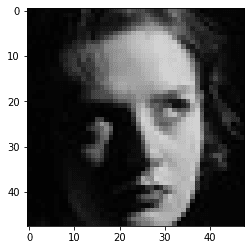
Notebook cell 4: plt.imshow(img_array) ## BGR
plt.imshow(img_array) ## BGR<matplotlib.image.AxesImage at 0x25198bbb488>
This code block is extracted from the uploaded Jupyter notebook. Replace or rewrite the explanation later with your final teaching notes for this step.
Notebook cell 5: Datadirectory = "Training/" ## training dataset
Datadirectory = "Training/" ## training datasetThis code block is extracted from the uploaded Jupyter notebook. Replace or rewrite the explanation later with your final teaching notes for this step.
Notebook cell 6: Classes = ["0","1","2","3","4","5","6"] ## list of classes = > exact name of your fol...
Classes = ["0","1","2","3","4","5","6"] ## list of classes = > exact name of your foldersThis code block is extracted from the uploaded Jupyter notebook. Replace or rewrite the explanation later with your final teaching notes for this step.
Notebook cell 7: for category in Classes:
for category in Classes:
    path = os.path.join(Datadirectory, category)  ## //
    for img in os.listdir(path):
        img_array = cv2.imread(os.path.join(path,img))
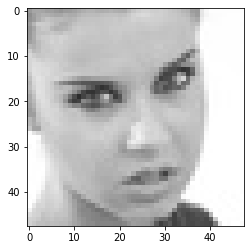
        #backtorgb = cv2.cvtColor(img_array,cv2.COLOR_GRAY2RGB)
        plt.imshow(cv2.cvtColor(img_array, cv2.COLOR_BGR2RGB))
        plt.show()
        break
breakThis code block is extracted from the uploaded Jupyter notebook. Replace or rewrite the explanation later with your final teaching notes for this step.
Notebook cell 8: img_size= 224 ## ImageNet => 224 x 224
img_size= 224 ## ImageNet => 224 x 224
new_array= cv2.resize(img_array, (img_size,img_size))
plt.imshow(cv2.cvtColor(new_array, cv2.COLOR_BGR2RGB))
plt.show()This code block is extracted from the uploaded Jupyter notebook. Replace or rewrite the explanation later with your final teaching notes for this step.
Notebook cell 9: new_array.shape
new_array.shape(224, 224, 3)
This code block is extracted from the uploaded Jupyter notebook. Replace or rewrite the explanation later with your final teaching notes for this step.
Notebook cell 11: training_Data = [] ## data array
training_Data = [] ## data array

def create_training_Data():
    for category in Classes:
        path = os.path.join(Datadirectory, category)
        class_num = Classes.index(category) ## 0 1,  ## Label
        for img in os.listdir(path):
            try:
                img_array = cv2.imread(os.path.join(path,img))
                new_array= cv2.resize(img_array, (img_size,img_size))
                training_Data.append([new_array,class_num])
            except Exception as e:
                pass
This code block is extracted from the uploaded Jupyter notebook. Replace or rewrite the explanation later with your final teaching notes for this step.
Notebook cell 12: create_training_Data()
create_training_Data()This code block is extracted from the uploaded Jupyter notebook. Replace or rewrite the explanation later with your final teaching notes for this step.
Notebook cell 13: print(len(training_Data))
print(len(training_Data))11568
This code block is extracted from the uploaded Jupyter notebook. Replace or rewrite the explanation later with your final teaching notes for this step.
Notebook cell 14: temp = np.array(training_Data)
temp = np.array(training_Data)This code block is extracted from the uploaded Jupyter notebook. Replace or rewrite the explanation later with your final teaching notes for this step.
Notebook cell 15: temp.shape
temp.shape(11568, 2)
This code block is extracted from the uploaded Jupyter notebook. Replace or rewrite the explanation later with your final teaching notes for this step.
Notebook cell 16: import random
import random

random.shuffle(training_Data)
This code block is extracted from the uploaded Jupyter notebook. Replace or rewrite the explanation later with your final teaching notes for this step.
Notebook cell 17: X = [] ## data /feature
X = []  ## data /feature
y = []  ## label

for features,label in training_Data:
    X.append(features)
    y.append(label)


X = np.array(X).reshape(-1, img_size, img_size, 3) ## converting it to 4 dimension
This code block is extracted from the uploaded Jupyter notebook. Replace or rewrite the explanation later with your final teaching notes for this step.
Notebook cell 18: X.shape
X.shape(11568, 224, 224, 3)
This code block is extracted from the uploaded Jupyter notebook. Replace or rewrite the explanation later with your final teaching notes for this step.
Notebook cell 19: # normalize the data
# normalize the data
X= X/255.0; ## we are normalizing it
This code block is extracted from the uploaded Jupyter notebook. Replace or rewrite the explanation later with your final teaching notes for this step.
Notebook cell 20: type(y)
type(y)list
This code block is extracted from the uploaded Jupyter notebook. Replace or rewrite the explanation later with your final teaching notes for this step.
Notebook cell 21: y[0]
y[0] 3
This code block is extracted from the uploaded Jupyter notebook. Replace or rewrite the explanation later with your final teaching notes for this step.
Notebook cell 22: Y= np.array(y)
Y= np.array(y)This code block is extracted from the uploaded Jupyter notebook. Replace or rewrite the explanation later with your final teaching notes for this step.
Notebook cell 23: Y.shape
Y.shape(11568,)
This code block is extracted from the uploaded Jupyter notebook. Replace or rewrite the explanation later with your final teaching notes for this step.
Notebook cell 25: import tensorflow as tf
import tensorflow as tf
from tensorflow import keras
from tensorflow.keras import layers
This code block is extracted from the uploaded Jupyter notebook. Replace or rewrite the explanation later with your final teaching notes for this step.
Notebook cell 26: model = tf.keras.applications.MobileNetV2() ## Pre-trained Model
model = tf.keras.applications.MobileNetV2() ## Pre-trained ModelThis code block is extracted from the uploaded Jupyter notebook. Replace or rewrite the explanation later with your final teaching notes for this step.
Notebook cell 27: model.summary()
model.summary()Model: "mobilenetv2_1.00_224" __________________________________________________________________________________________________ Layer (type) Output Shape Param # Connected to ================================================================================================== input_1 (InputLayer) [(None, 224, 224, 3) 0 __________________________________________________________________________________________________ Conv1_pad (ZeroPadding2D) (None, 225, 225, 3) 0 input_1[0][0] __________________________________________________________________________________________________ Conv1 (Conv2D) (None, 112, 112, 32) 864 Conv1_pad[0][0] __________________________________________________________________________________________________ bn_Conv1 (BatchNormalization) (None, 112, 112, 32) 128 Conv1[0][0] __________________________________________________________________________________________________ Conv1_relu (ReLU) (None, 112, 112, 32) 0 bn_Conv1[0][0] __________________________________________________________________________________________________ expanded_conv_depthwise (Depthw (None, 112, 112, 32) 288 Conv1_relu[0][0] __________________________________________________________________________________________________ expanded_conv_depthwise_BN (Bat (None, 112, 112, 32) 128 expanded_conv_depthwise[0][0] __________________________________________________________________________________________________ expanded_conv_depthwise_relu (R (None, 112, 112, 32) 0 expanded_conv_depthwise_BN[0][0] __________________________________________________________________________________________________ expanded_conv_project (Conv2D) (None, 112, 112, 16) 512 expanded_conv_depthwise_relu[0][0 __________________________________________________________________________________________________ expanded_conv_project_BN (Batch (None, 112, 112, 16) 64 expanded_conv_project[0][0] __________________________________________________________________________________________________ block_1_expand (Conv2D) (None, 112, 112, 96) 1536 expanded_conv_project_BN[0][0] ______________________________________________________________________________________________ ... [output shortened for website readability]
This code block is extracted from the uploaded Jupyter notebook. Replace or rewrite the explanation later with your final teaching notes for this step.
Notebook cell 29: base_input = model.layers[0].input ## input
base_input = model.layers[0].input ## inputThis code block is extracted from the uploaded Jupyter notebook. Replace or rewrite the explanation later with your final teaching notes for this step.
Notebook cell 30: base_output = model.layers[-2].output
base_output = model.layers[-2].outputThis code block is extracted from the uploaded Jupyter notebook. Replace or rewrite the explanation later with your final teaching notes for this step.
Notebook cell 31: base_ouput
base_ouput<tf.Tensor 'global_average_pooling2d/Identity:0' shape=(None, 1280) dtype=float32>
This code block is extracted from the uploaded Jupyter notebook. Replace or rewrite the explanation later with your final teaching notes for this step.
Notebook cell 32: final_output = layers.Dense(128)(base_output) ## adding new layer, after the output o...
final_output = layers.Dense(128)(base_output) ## adding new layer, after the output of global pooling layer
final_ouput = layers.Activation('relu')(final_output) ## activation function
final_output = layers.Dense(64)(final_ouput)
final_ouput = layers.Activation('relu')(final_output)
final_output = layers.Dense(7,activation='softmax')(final_ouput) ## my classes are 07, classification layer
This code block is extracted from the uploaded Jupyter notebook. Replace or rewrite the explanation later with your final teaching notes for this step.
Notebook cell 33: final_output ## ouput
final_output ## ouput<tf.Tensor 'dense_2/Identity:0' shape=(None, 7) dtype=float32>
This code block is extracted from the uploaded Jupyter notebook. Replace or rewrite the explanation later with your final teaching notes for this step.
Notebook cell 34: new_model = keras.Model(inputs = base_input, outputs= final_output)
new_model = keras.Model(inputs = base_input, outputs= final_output)This code block is extracted from the uploaded Jupyter notebook. Replace or rewrite the explanation later with your final teaching notes for this step.
Notebook cell 35: new_model.summary()
new_model.summary()Model: "model" __________________________________________________________________________________________________ Layer (type) Output Shape Param # Connected to ================================================================================================== input_1 (InputLayer) [(None, 224, 224, 3) 0 __________________________________________________________________________________________________ Conv1_pad (ZeroPadding2D) (None, 225, 225, 3) 0 input_1[0][0] __________________________________________________________________________________________________ Conv1 (Conv2D) (None, 112, 112, 32) 864 Conv1_pad[0][0] __________________________________________________________________________________________________ bn_Conv1 (BatchNormalization) (None, 112, 112, 32) 128 Conv1[0][0] __________________________________________________________________________________________________ Conv1_relu (ReLU) (None, 112, 112, 32) 0 bn_Conv1[0][0] __________________________________________________________________________________________________ expanded_conv_depthwise (Depthw (None, 112, 112, 32) 288 Conv1_relu[0][0] __________________________________________________________________________________________________ expanded_conv_depthwise_BN (Bat (None, 112, 112, 32) 128 expanded_conv_depthwise[0][0] __________________________________________________________________________________________________ expanded_conv_depthwise_relu (R (None, 112, 112, 32) 0 expanded_conv_depthwise_BN[0][0] __________________________________________________________________________________________________ expanded_conv_project (Conv2D) (None, 112, 112, 16) 512 expanded_conv_depthwise_relu[0][0 __________________________________________________________________________________________________ expanded_conv_project_BN (Batch (None, 112, 112, 16) 64 expanded_conv_project[0][0] __________________________________________________________________________________________________ block_1_expand (Conv2D) (None, 112, 112, 96) 1536 expanded_conv_project_BN[0][0] __________________________________________________________________________________________________ block_1_ex ... [output shortened for website readability]
This code block is extracted from the uploaded Jupyter notebook. Replace or rewrite the explanation later with your final teaching notes for this step.
Notebook cell 36: new_model.compile(loss="sparse_categorical_crossentropy", optimizer = "adam", metrics...
new_model.compile(loss="sparse_categorical_crossentropy", optimizer = "adam", metrics = ["accuracy"])This code block is extracted from the uploaded Jupyter notebook. Replace or rewrite the explanation later with your final teaching notes for this step.
Notebook cell 37: new_model.fit(X,Y, epochs = 25) ## training
new_model.fit(X,Y, epochs = 25) ## training This code block is extracted from the uploaded Jupyter notebook. Replace or rewrite the explanation later with your final teaching notes for this step.
Notebook cell 38: new_model.save('Final_model_95p07.h5')
new_model.save('Final_model_95p07.h5') This code block is extracted from the uploaded Jupyter notebook. Replace or rewrite the explanation later with your final teaching notes for this step.
Notebook cell 39: new_model = tf.keras.models.load_model('Final_model_95p07.h5')
new_model = tf.keras.models.load_model('Final_model_95p07.h5')This code block is extracted from the uploaded Jupyter notebook. Replace or rewrite the explanation later with your final teaching notes for this step.
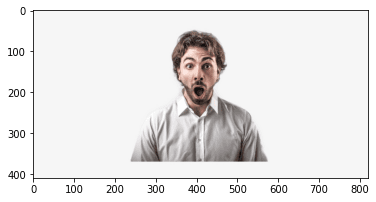
Notebook cell 40: frame = cv2.imread("surprised_man.jpg")
frame = cv2.imread("surprised_man.jpg")This code block is extracted from the uploaded Jupyter notebook. Replace or rewrite the explanation later with your final teaching notes for this step.
Notebook cell 41: frame.shape
frame.shape(410, 820, 3)
This code block is extracted from the uploaded Jupyter notebook. Replace or rewrite the explanation later with your final teaching notes for this step.
Notebook cell 42: plt.imshow(cv2.cvtColor(frame, cv2.COLOR_BGR2RGB))
plt.imshow(cv2.cvtColor(frame, cv2.COLOR_BGR2RGB))<matplotlib.image.AxesImage at 0x1cf8c66f888>
This code block is extracted from the uploaded Jupyter notebook. Replace or rewrite the explanation later with your final teaching notes for this step.
Notebook cell 43: # we need face detection algorihtm (gray image )
# we need face detection algorihtm (gray image )This code block is extracted from the uploaded Jupyter notebook. Replace or rewrite the explanation later with your final teaching notes for this step.
Notebook cell 44: faceCascade = cv2.CascadeClassifier(cv2.data.haarcascades + 'haarcascade_frontalface_...
faceCascade = cv2.CascadeClassifier(cv2.data.haarcascades + 'haarcascade_frontalface_default.xml')This code block is extracted from the uploaded Jupyter notebook. Replace or rewrite the explanation later with your final teaching notes for this step.
Notebook cell 45: gray = cv2.cvtColor(frame, cv2.COLOR_BGR2GRAY)
gray = cv2.cvtColor(frame, cv2.COLOR_BGR2GRAY)This code block is extracted from the uploaded Jupyter notebook. Replace or rewrite the explanation later with your final teaching notes for this step.
Notebook cell 46: gray.shape
gray.shape(410, 820)
This code block is extracted from the uploaded Jupyter notebook. Replace or rewrite the explanation later with your final teaching notes for this step.
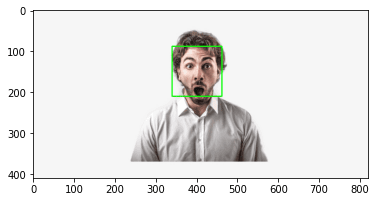
Notebook cell 47: faces = faceCascade.detectMultiScale(gray,1.1,4)
faces = faceCascade.detectMultiScale(gray,1.1,4)
for x,y,w,h in faces:
    roi_gray = gray[y:y+h, x:x+w]
    roi_color = frame[y:y+h, x:x+w]
    cv2.rectangle(frame, (x, y), (x+w, y+h), (0, 255, 0), 2) # BGR
    facess = faceCascade.detectMultiScale(roi_gray)
    if len(facess) == 0:
        print("Face  not detected")
    else:
        for (ex,ey,ew,eh) in facess:
            face_roi = roi_color[ey: ey+eh, ex:ex + ew]
This code block is extracted from the uploaded Jupyter notebook. Replace or rewrite the explanation later with your final teaching notes for this step.
Notebook cell 48: plt.imshow(cv2.cvtColor(frame, cv2.COLOR_BGR2RGB))
plt.imshow(cv2.cvtColor(frame, cv2.COLOR_BGR2RGB))<matplotlib.image.AxesImage at 0x1d026451708>
This code block is extracted from the uploaded Jupyter notebook. Replace or rewrite the explanation later with your final teaching notes for this step.
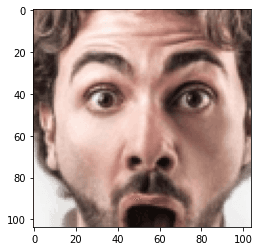
Notebook cell 49: plt.imshow(cv2.cvtColor(face_roi, cv2.COLOR_BGR2RGB))
plt.imshow(cv2.cvtColor(face_roi, cv2.COLOR_BGR2RGB))<matplotlib.image.AxesImage at 0x1d025dff2c8>
This code block is extracted from the uploaded Jupyter notebook. Replace or rewrite the explanation later with your final teaching notes for this step.
Notebook cell 50: final_image =cv2.resize(face_roi, (224,224)) ##
final_image =cv2.resize(face_roi, (224,224)) ##
final_image =  np.expand_dims(final_image,axis =0)  ## need fourth dimension
final_image=final_image/255.0 ## normalizing
This code block is extracted from the uploaded Jupyter notebook. Replace or rewrite the explanation later with your final teaching notes for this step.
Notebook cell 51: Predictions =new_model.predict(final_image)
Predictions =new_model.predict(final_image)This code block is extracted from the uploaded Jupyter notebook. Replace or rewrite the explanation later with your final teaching notes for this step.
Notebook cell 52: Predictions[0]
Predictions[0]array([2.2529088e-05, 9.1614591e-09, 2.7516992e-06, 3.3497886e-07,
1.9450944e-07, 9.9997175e-01, 2.3757423e-06], dtype=float32)This code block is extracted from the uploaded Jupyter notebook. Replace or rewrite the explanation later with your final teaching notes for this step.
Notebook cell 53: np.argmax(Predictions)
np.argmax(Predictions)5
This code block is extracted from the uploaded Jupyter notebook. Replace or rewrite the explanation later with your final teaching notes for this step.
Notebook cell 55: import cv2 ### pip install opencv-python
import cv2 ###  pip install opencv-python
 ## pip install opencv-contrib-python   fullpackage
#from deepface import DeepFace  ## pip install deepface
path = "haarcascade_frontalface_default.xml"
font_scale = 1.5
font = cv2.FONT_HERSHEY_PLAIN

# set the rectangle background to white
rectangle_bgr = (255, 255, 255)
# make a black image
img = np.zeros((500, 500))
# set some text
text = "Some text in a box!"
# get the width and height of the text box
(text_width, text_height) = cv2.getTextSize(text, font, fontScale=font_scale, thickness=1)[0]
# set the text start position
text_offset_x = 10
text_offset_y = img.shape[0] - 25
# make the coords of the box with a small padding of two pixels
box_coords = ((text_offset_x, text_offset_y), (text_offset_x + text_width + 2, text_offset_y - text_height - 2))
cv2.rectangle(img, box_coords[0], box_coords[1], rectangle_bgr, cv2.FILLED)
cv2.putText(img, text, (text_offset_x, text_offset_y), font, fontScale=font_scale, color=(0, 0, 0), thickness=1)

cap = cv2.VideoCapture(1)
# Check if the webcam is opened correctly
if not cap.isOpened():
    cap = cv2.VideoCapture(0)
if not cap.isOpened():
    raise IOError("Cannot open webcam")

while True:
    ret,frame = cap.read()
    #eye_cascade = cv2.CascadeClassifier(cv2.data.haarcascades +'haarcascade_eye.xml')
    faceCascade = cv2.CascadeClassifier(cv2.data.haarcascades + 'haarcascade_frontalface_default.xml')
    gray = cv2.cvtColor(frame, cv2.COLOR_BGR2GRAY)
    #print(faceCascade.empty())
    faces = faceCascade.detectMultiScale(gray,1.1,4)
    for x,y,w,h in faces:
        roi_gray = gray[y:y+h, x:x+w]
        roi_color = frame[y:y+h, x:x+w]
        cv2.rectangle(frame, (x, y), (x+w, y+h), (255, 0, 0), 2)
        facess = faceCascade.detectMultiScale(roi_gray)
        if len(facess) == 0:
            print("Face  not detected")
        else:
            for (ex,ey,ew,eh) in facess:
                face_roi = roi_color[ey: ey+eh, ex:ex + ew] ## cropping the face

    final_image =cv2.resize(face_roi, (224,224))
    final_image =  np.expand_dims(final_image,axis =0)  ## need fourth dimension
    final_image=final_image/255.0

    font = cv2.FONT_HERSHEY_SIMPLEX

    Predictions = new_model.predict(final_image)

    font_scale = 1.5
    font = cv2.FONT_HERSHEY_PLAIN


    if (np.argmax(Predictions)==0):
        status = "Angry"

        x1,y1,w1,h1 = 0,0,175,75
        # Draw black background rectangle
        cv2.rectangle(frame, (x1, x1), (x1 + w1, y1 + h1), (0,0,0), -1)
        # Add text
        cv2.putText(frame, status, (x1 + int(w1/10),y1 + int(h1/2)), cv2.FONT_HERSHEY_SIMPLEX, 0.7, (0,0,255), 2)

        cv2.putText(frame,status,(100, 150),font, 3,(0, 0, 255),2,cv2.LINE_4)

        cv2.rectangle(frame, (x, y), (x+w, y+h), (0, 0, 255))

    elif (np.argmax(Predictions)==1):
        status = "Disgust"

        x1,y1,w1,h1 = 0,0,175,75
        # Draw black background rectangle
        cv2.rectangle(frame, (x1, x1), (x1 + w1, y1 + h1), (0,0,0), -1)
        # Add text
        cv2.putText(frame, status, (x1 + int(w1/10),y1 + int(h1/2)), cv2.FONT_HERSHEY_SIMPLEX, 0.7, (0,0,255), 2)

        cv2.putText(frame,status,(100, 150),font, 3,(0, 0, 255),2,cv2.LINE_4)

        cv2.rectangle(frame, (x, y), (x+w, y+h), (0, 0, 255))

    elif (np.argmax(Predictions)==2):
        status = "Fear"

        x1,y1,w1,h1 = 0,0,175,75
        # Draw black background rectangle
        cv2.rectangle(frame, (x1, x1), (x1 + w1, y1 + h1), (0,0,0), -1)
        # Add text
        cv2.putText(frame, status, (x1 + int(w1/10),y1 + int(h1/2)), cv2.FONT_HERSHEY_SIMPLEX, 0.7, (0,0,255), 2)

        cv2.putText(frame,status,(100, 150),font, 3,(0, 0, 255),2,cv2.LINE_4)

        cv2.rectangle(frame, (x, y), (x+w, y+h), (0, 0, 255))

    elif (np.argmax(Predictions)==3):
        status = "Happy"

        x1,y1,w1,h1 = 0,0,175,75
        # Draw black background rectangle
        cv2.rectangle(frame, (x1, x1), (x1 + w1, y1 + h1), (0,0,0), -1)
        # Add text
        cv2.putText(frame, status, (x1 + int(w1/10),y1 + int(h1/2)), cv2.FONT_HERSHEY_SIMPLEX, 0.7, (0,0,255), 2)

        cv2.putText(frame,status,(100, 150),font, 3,(0, 0, 255),2,cv2.LINE_4)

        cv2.rectangle(frame, (x, y), (x+w, y+h), (0, 0, 255))

    elif (np.argmax(Predictions)==4):
        status = "Sad"

        x1,y1,w1,h1 = 0,0,175,75
        # Draw black background rectangle
        cv2.rectangle(frame, (x1, x1), (x1 + w1, y1 + h1), (0,0,0), -1)
        # Add text
        cv2.putText(frame, status, (x1 + int(w1/10),y1 + int(h1/2)), cv2.FONT_HERSHEY_SIMPLEX, 0.7, (0,0,255), 2)

        cv2.putText(frame,status,(100, 150),font, 3,(0, 0, 255),2,cv2.LINE_4)

        cv2.rectangle(frame, (x, y), (x+w, y+h), (0, 0, 255))

    elif (np.argmax(Predictions)==5):
        status = "Surprise"

        x1,y1,w1,h1 = 0,0,175,75
        # Draw black background rectangle
        cv2.rectangle(frame, (x1, x1), (x1 + w1, y1 + h1), (0,0,0), -1)
        # Add text
        cv2.putText(frame, status, (x1 + int(w1/10),y1 + int(h1/2)), cv2.FONT_HERSHEY_SIMPLEX, 0.7, (0,0,255), 2)

        cv2.putText(frame,status,(100, 150),font, 3,(0, 0, 255),2,cv2.LINE_4)

        cv2.rectangle(frame, (x, y), (x+w, y+h), (0, 0, 255))
    else:
        status = "Neutral"

        x1,y1,w1,h1 = 0,0,175,75
        # Draw black background rectangle
        cv2.rectangle(frame, (x1, x1), (x1 + w1, y1 + h1), (0,0,0), -1)
        # Add text
        cv2.putText(frame, status, (x1 + int(w1/10),y1 + int(h1/2)), cv2.FONT_HERSHEY_SIMPLEX, 0.7, (0,255,0), 2)
        cv2.putText(frame,status,(100, 150),font, 3,(0, 255,0),2,cv2.LINE_4)
        cv2.rectangle(frame, (x, y), (x+w, y+h), (0, 255,0))

    #gray = cv2.cvtColor(frame, cv2.COLOR_BGR2GRAY)
    #print(faceCascade.empty())
    #faces = faceCascade.detectMultiScale(gray,1.1,4)

    # Draw a rectangle around the faces
    #for(x, y, w, h) in faces:
      #  cv2.rectangle(frame, (x, y), (x+w, y+h), (0, 255, 0), 2)


    # Use putText() method for
    # inserting text on video

    cv2.imshow('Face Emotion Recognition',frame)

    if cv2.waitKey(2) & 0xFF == ord('q'):
        break

cap.release()
cv2.destroyAllWindows()Face not detected
Face not detected
Face not detected
Face not detected
Face not detected
Face not detected
Face not detected
Face not detected
Face not detected
Face not detected
Face not detected
Face not detected
Face not detected
Face not detected
Face not detected
Face not detected
Face not detected
Face not detected
Face not detected
Face not detected
Face not detected
Face not detected
Face not detected
Face not detected
Face not detected
Face not detected
Face not detected
Face not detected
Face not detected
Face not detected
Face not detected
Face not detected
Face not detected
Face not detected
Face not detected
Face not detected
Face not detected
Face not detected
Face not detected
Face not detected
Face not detected
Face not detected
Face not detected
Face not detected
Face not detected
Face not detected
Face not detected
Face not detected
Face not detected
Face not detected
Face not detected
Face not detected
Face not detected
Face not detected
Face not detected
Face not detected
Face not detected
Face not detected
Face not detected
Face not detected
Face not detected
Face not detected
Face not detected
Face not detected
Face not detected
Face not detected
Face not detected
Face not detected
Face not detected
Face not detected
Face not detected
Face not detected
Face not detected
Face not detected
Face not detected
Face not detected
Face not detected
Face not detected
Face not detected
Face not detected
Face not detected
Face not detected
Face not detected
Face not detected
Face not detected
Face not detected
Face not detected
Face not detected
Face not detected
Face not detected
Face not detected
Face not detected
Face not detected
Face not detected
Face not detected
Face not detected
Face not detected
Face not detected
Face not detected
Face not detected
Face not detected
Face not detected
Face not detected
Face not detected
Face not detected
Face not detected
Face not detected
Face not detected
Face not detected
Face not detected
Face not detected
Face not detected
Face not detected
Face not detected
Face not detected
Face not detected
Face not detected
Face not detected
Face not detected
Face not detected
Face not detected
Face not detected
Face not detected
Face not detected
Face not detected
Face not detected
Face not detected
Face not detected
Face not detected
Face not detected
Face not detected
Face not d
... [output shortened for website readability]
KeyboardInterrupt:
[1;31m---------------------------------------------------------------------------
[1;31mKeyboardInterrupt Traceback (most recent call last)
[1;32m<ipython-input-18-495b00b848aa> in <module>[1;34m
53 font [1;33m= cv2[1;33m.FONT_HERSHEY_SIMPLEX[1;33m[1;33m
54 [1;33m
[1;32m---> 55[1;33m Predictions [1;33m= new_model[1;33m.predict[1;33m(final_image[1;33m)[1;33m[1;33m
56 [1;33m
57 font_scale [1;33m= [1;36m1.5[1;33m[1;33m
[1;32mC:\ProgramData\Anaconda3\lib\site-packages\tensorflow_core\python\keras\engine\training.py in predict[1;34m(self, x, batch_size, verbose, steps, callbacks, max_queue_size, workers, use_multiprocessing)
907 max_queue_size[1;33m=max_queue_size[1;33m,[1;33m[1;33m
908 workers[1;33m=workers[1;33m,[1;33m[1;33m
[1;32m--> 909[1;33m use_multiprocessing=use_multiprocessing)
910 [1;33m
911 [1;32mdef reset_metrics[1;33m(self[1;33m)[1;33m:[1;33m[1;33m
[1;32mC:\ProgramData\Anaconda3\lib\site-packages\tensorflow_core\python\keras\engine\training_v2.py in predict[1;34m(self, model, x, batch_size, verbose, steps, callbacks, **kwargs)
460 return self._model_iteration(
461 model[1;33m, ModeKeys[1;33m.PREDICT[1;33m, x[1;33m=x[1;33m, batch_size[1;33m=batch_size[1;33m, verbose[1;33m=verbose[1;33m,[1;33m[1;33m
[1;32m--> 462[1;33m steps=steps, callbacks=callbacks, **kwargs)
463 [1;33m
464 [1;33m
[1;32mC:\ProgramData\Anaconda3\lib\site-packages\tensorflow_core\python\keras\engine\training_v2.py in _model_iteration[1;34m(self, model, mode, x, y, batch_size, verbose, sample_weight, steps, callbacks, **kwargs)
442 mode[1;33m=mode[1;33m,[1;33m[1;
... [output shortened for website readability]This code block is extracted from the uploaded Jupyter notebook. Replace or rewrite the explanation later with your final teaching notes for this step.
Download source code
Use this area to provide the complete source code, GitHub repository, Google Drive ZIP, notebook, dataset, or premium download link.
Download Notebook / Source Code